Banner Guides
Update at 2022-01-01T16:09:05.000Z
Tutorial setting banner homepage website
Add / Change Banner
1· Open file:
/home/your-seal-name-core/resources/views/banner/banner.blade.php
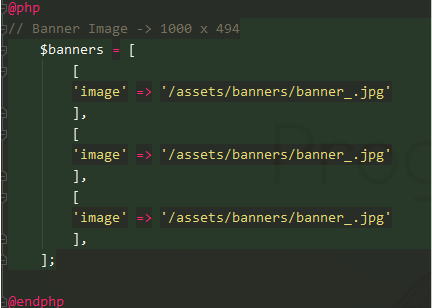
2· Copy / Delete by [ ]
For example if you want to remove banner then make it looks like this

If want to add then add after comma
  [
    'image' => '/assets/banners/banner_.jpg'
  ],
Image Path / Location
By default image can be found on: /home/your-seal-name-core/public/assets/banners But you can use external URL such as facebook image or direct image link Change the /assets/banners/banner_.jpg with your file name
For example:

Image Dimension
Please use image with dimension:
Width: 641px
Height: 314px